硬件加速的视频解码和编码¶
作者: Moto Hira
本教程介绍如何在 TorchAudio 中使用 NVIDIA 的硬件视频解码器(NVDEC)和编码器(NVENC)。
使用硬件编解码器可以提高加载和保存某些类型视频的速度。在 TorchAudio 中使用它们需要额外的 FFmpeg 配置。本教程将介绍如何编译 FFmpeg,并比较处理视频所需的时间。
WARNING
This tutorial instsalls FFmpeg in system directory. If you run this tutorial on your system, please adjust the build configuration accordingly.
NOTE
This tutorial was authored in Google Colab, and is tailored to Google Colab’s specifications. Please check out this tutorial in Google Colab.
要在 TorchAudio 中使用 NVENC/NVDEC,需要满足以下要求。
配备 NVIDIA GPU 和硬件视频解码器/编码器。
使用 NVDEC/NVENC 支持编译的 FFmpeg 库。†
PyTorch / TorchAudio 支持 CUDA。
TorchAudio 的官方二进制发行版是使用 FFmpeg 4 库编译的,并包含基于硬件的解码/编码所需的逻辑。
在以下部分中,我们将构建支持 NVDEC/NVENC 的 FFmpeg 4 库,然后演示使用 TorchAudio 的 StreamReader/StreamWriter 所带来的性能提升。
† 有关 NVDEC/NVENC 和 FFmpeg 的详细信息,请参阅以下文章。
https://docs.nvidia.com/video-technologies/video-codec-sdk/nvdec-video-decoder-api-prog-guide/
https://docs.nvidia.com/video-technologies/video-codec-sdk/ffmpeg-with-nvidia-gpu/#compiling-ffmpeg
https://developer.nvidia.com/blog/nvidia-ffmpeg-transcoding-guide/
检查可用的 GPU¶
[1]:
!nvidia-smi
Fri Oct  7 13:01:26 2022
+-----------------------------------------------------------------------------+
| NVIDIA-SMI 460.32.03    Driver Version: 460.32.03    CUDA Version: 11.2     |
|-------------------------------+----------------------+----------------------+
| GPU  Name        Persistence-M| Bus-Id        Disp.A | Volatile Uncorr. ECC |
| Fan  Temp  Perf  Pwr:Usage/Cap|         Memory-Usage | GPU-Util  Compute M. |
|                               |                      |               MIG M. |
|===============================+======================+======================|
|   0  Tesla T4            Off  | 00000000:00:04.0 Off |                    0 |
| N/A   56C    P8    10W /  70W |      0MiB / 15109MiB |      0%      Default |
|                               |                      |                  N/A |
+-------------------------------+----------------------+----------------------+

+-----------------------------------------------------------------------------+
| Processes:                                                                  |
|  GPU   GI   CI        PID   Type   Process name                  GPU Memory |
|        ID   ID                                                   Usage      |
|=============================================================================|
|  No running processes found                                                 |
+-----------------------------------------------------------------------------+
使用每日构建版本更新 PyTorch 和 TorchAudio¶
在 TorchAudio 0.13 发布之前,我们需要使用 PyTorch 和 TorchAudio 的每日构建版本。
[2]:
!pip uninstall -y -q torch torchaudio torchvision torchtext
!pip install --progress-bar off --pre torch torchaudio --extra-index-url https://download.pytorch.org/whl/nightly/cu116 2> /dev/null
Looking in indexes: https://pypi.org/simple, https://us-python.pkg.dev/colab-wheels/public/simple/, https://download.pytorch.org/whl/nightly/cu116
Collecting torch
  Downloading https://download.pytorch.org/whl/nightly/cu116/torch-1.14.0.dev20221007%2Bcu116-cp37-cp37m-linux_x86_64.whl (2286.1 MB)

Collecting torchaudio
  Downloading https://download.pytorch.org/whl/nightly/cu116/torchaudio-0.13.0.dev20221006%2Bcu116-cp37-cp37m-linux_x86_64.whl (4.2 MB)

Requirement already satisfied: typing-extensions in /usr/local/lib/python3.7/dist-packages (from torch) (4.1.1)
Collecting torch
  Downloading https://download.pytorch.org/whl/nightly/cu116/torch-1.13.0.dev20221006%2Bcu116-cp37-cp37m-linux_x86_64.whl (1983.0 MB)

Installing collected packages: torch, torchaudio
Successfully installed torch-1.13.0.dev20221006+cu116 torchaudio-0.13.0.dev20221006+cu116
构建支持 Nvidia NVDEC/NVENC 的 FFmpeg 库¶
安装 NVIDIA 视频编解码器头文件¶
要使用 NVDEC/NVENC 构建 FFmpeg,我们首先需要安装 FFmpeg 用于与 Video Codec SDK 交互的头文件。
[3]:
!git clone https://git.videolan.org/git/ffmpeg/nv-codec-headers.git
# Note: Google Colab's GPU has NVENC API ver 11.0, so we checkout 11.0 tag.
!cd nv-codec-headers && git checkout n11.0.10.1 && sudo make install
Cloning into 'nv-codec-headers'...
remote: Enumerating objects: 819, done.
remote: Counting objects: 100% (819/819), done.
remote: Compressing objects: 100% (697/697), done.
remote: Total 819 (delta 439), reused 0 (delta 0)
Receiving objects: 100% (819/819), 156.42 KiB | 410.00 KiB/s, done.
Resolving deltas: 100% (439/439), done.
Note: checking out 'n11.0.10.1'.

You are in 'detached HEAD' state. You can look around, make experimental
changes and commit them, and you can discard any commits you make in this
state without impacting any branches by performing another checkout.

If you want to create a new branch to retain commits you create, you may
do so (now or later) by using -b with the checkout command again. Example:

  git checkout -b <new-branch-name>

HEAD is now at 315ad74 add cuMemcpy
sed 's#@@PREFIX@@#/usr/local#' ffnvcodec.pc.in > ffnvcodec.pc
install -m 0755 -d '/usr/local/include/ffnvcodec'
install -m 0644 include/ffnvcodec/*.h '/usr/local/include/ffnvcodec'
install -m 0755 -d '/usr/local/lib/pkgconfig'
install -m 0644 ffnvcodec.pc '/usr/local/lib/pkgconfig'
下载 FFmpeg 源代码¶
接下来,我们下载 FFmpeg 4 的源代码。任何高于 4.1 的版本均可使用。此处我们使用 4.4.2 版本。
[4]:
!wget -q https://github.com/FFmpeg/FFmpeg/archive/refs/tags/n4.4.2.tar.gz
!tar -xf n4.4.2.tar.gz
!mv FFmpeg-n4.4.2 ffmpeg
安装 FFmpeg 构建和运行时依赖项¶
在后续测试中,我们使用 H264 视频编解码器和 HTTPS 协议,因此在此处安装相应的库。
[5]:
!apt -qq update
!apt -qq install -y yasm libx264-dev libgnutls28-dev
STRIP   install-libavutil-shared

... Omitted for brevity ...

Setting up libx264-dev:amd64 (2:0.152.2854+gite9a5903-2) ...
Setting up yasm (1.3.0-2build1) ...
Setting up libunbound2:amd64 (1.6.7-1ubuntu2.5) ...
Setting up libp11-kit-dev:amd64 (0.23.9-2ubuntu0.1) ...
Setting up libtasn1-6-dev:amd64 (4.13-2) ...
Setting up libtasn1-doc (4.13-2) ...
Setting up libgnutlsxx28:amd64 (3.5.18-1ubuntu1.6) ...
Setting up libgnutls-dane0:amd64 (3.5.18-1ubuntu1.6) ...
Setting up libgnutls-openssl27:amd64 (3.5.18-1ubuntu1.6) ...
Setting up libgmpxx4ldbl:amd64 (2:6.1.2+dfsg-2) ...
Setting up libidn2-dev:amd64 (2.0.4-1.1ubuntu0.2) ...
Setting up libidn2-0-dev (2.0.4-1.1ubuntu0.2) ...
Setting up libgmp-dev:amd64 (2:6.1.2+dfsg-2) ...
Setting up nettle-dev:amd64 (3.4.1-0ubuntu0.18.04.1) ...
Setting up libgnutls28-dev:amd64 (3.5.18-1ubuntu1.6) ...
Processing triggers for man-db (2.8.3-2ubuntu0.1) ...
Processing triggers for libc-bin (2.27-3ubuntu1.6) ...
配置 FFmpeg 构建以支持 Nvidia CUDA 硬件¶
接下来我们配置 FFmpeg 的构建。请注意以下内容:
我们提供类似
-I/usr/local/cuda/include,-L/usr/local/cuda/lib64的标志,让构建过程知道在哪里找到 CUDA 库。我们提供如
--enable-nvdec和--enable-nvenc等标志以启用 NVDEC/NVENC。有关详细信息,请参阅转码指南†。我们还提供了计算能力为 37 的 NVCC 标志。这是因为配置脚本默认会通过编译针对计算能力 30 的示例代码来验证 NVCC,而该版本对于 CUDA 11 来说过于陈旧。
为缩短编译时间,许多功能已被禁用。
我们在
/usr/lib/中安装该库,这是动态加载器的活动搜索路径之一。 这样做允许在不重启当前会话的情况下找到生成的库。这可能是一个不理想的位置,例如当用户未使用一次性虚拟机时。
† NVIDIA FFmpeg 转码指南 https://developer.nvidia.com/blog/nvidia-ffmpeg-transcoding-guide/
[6]:
# NOTE:
# When the configure script of FFmpeg 4 checks nvcc, it uses compute
# capability of 30 (3.0) by default. CUDA 11, however, does not support
# compute capability 30.
# Here, we use 37, which is supported by CUDA 11 and both K80 and T4.
#
# Tesla K80: 37
# NVIDIA T4: 75

%env ccap=37

# NOTE:
# We disable most of the features to speed up compilation
# The necessary components are
# - demuxer: mov, aac
# - decoder: h264, h264_nvdec
# - muxer: mp4
# - encoder: libx264, h264_nvenc
# - gnutls (HTTPS)
#
# Additionally, we use FFmpeg's virtual input device to generate
# test video data. This requires
# - input device: lavfi
# - filter: testsrc2
# - decoder: rawvideo
#

!cd ffmpeg && ./configure \
  --prefix='/usr/' \
  --extra-cflags='-I/usr/local/cuda/include' \
  --extra-ldflags='-L/usr/local/cuda/lib64' \
  --nvccflags="-gencode arch=compute_${ccap},code=sm_${ccap} -O2" \
  --disable-doc \
  --disable-static \
  --disable-bsfs \
  --disable-decoders \
  --disable-encoders \
  --disable-filters \
  --disable-demuxers \
  --disable-devices \
  --disable-muxers \
  --disable-parsers \
  --disable-postproc \
  --disable-protocols \
  --enable-decoder=aac \
  --enable-decoder=h264 \
  --enable-decoder=h264_cuvid \
  --enable-decoder=rawvideo \
  --enable-indev=lavfi \
  --enable-encoder=libx264 \
  --enable-encoder=h264_nvenc \
  --enable-demuxer=mov \
  --enable-muxer=mp4 \
  --enable-filter=scale \
  --enable-filter=testsrc2 \
  --enable-protocol=file \
  --enable-protocol=https \
  --enable-gnutls \
  --enable-shared \
  --enable-gpl \
  --enable-nonfree \
  --enable-cuda-nvcc \
  --enable-libx264 \
  --enable-nvenc \
  --enable-cuvid \
  --enable-nvdec
env: ccap=37
install prefix            /usr/
source path               .
C compiler                gcc
C library                 glibc
ARCH                      x86 (generic)
big-endian                no
runtime cpu detection     yes
standalone assembly       yes
x86 assembler             yasm
MMX enabled               yes
MMXEXT enabled            yes
3DNow! enabled            yes
3DNow! extended enabled   yes
SSE enabled               yes
SSSE3 enabled             yes
AESNI enabled             yes
AVX enabled               yes
AVX2 enabled              yes
AVX-512 enabled           yes
XOP enabled               yes
FMA3 enabled              yes
FMA4 enabled              yes
i686 features enabled     yes
CMOV is fast              yes
EBX available             yes
EBP available             yes
debug symbols             yes
strip symbols             yes
optimize for size         no
optimizations             yes
static                    no
shared                    yes
postprocessing support    no
network support           yes
threading support         pthreads
safe bitstream reader     yes
texi2html enabled         no
perl enabled              yes
pod2man enabled           yes
makeinfo enabled          no
makeinfo supports HTML    no

External libraries:
alsa                    libx264                 lzma
bzlib                   libxcb                  zlib
gnutls                  libxcb_shape
iconv                   libxcb_xfixes

External libraries providing hardware acceleration:
cuda                    cuvid                   nvenc
cuda_llvm               ffnvcodec               v4l2_m2m
cuda_nvcc               nvdec

Libraries:
avcodec                 avformat                swscale
avdevice                avutil
avfilter                swresample

Programs:
ffmpeg                  ffprobe

Enabled decoders:
aac                     hevc                    rawvideo
av1                     mjpeg                   vc1
h263                    mpeg1video              vp8
h264                    mpeg2video              vp9
h264_cuvid              mpeg4

Enabled encoders:
h264_nvenc              libx264

Enabled hwaccels:
av1_nvdec               mpeg1_nvdec             vp8_nvdec
h264_nvdec              mpeg2_nvdec             vp9_nvdec
hevc_nvdec              mpeg4_nvdec             wmv3_nvdec
mjpeg_nvdec             vc1_nvdec

Enabled parsers:
h263                    mpeg4video              vp9

Enabled demuxers:
mov

Enabled muxers:
mov                     mp4

Enabled protocols:
file                    tcp
https                   tls

Enabled filters:
aformat                 hflip                   transpose
anull                   null                    trim
atrim                   scale                   vflip
format                  testsrc2

Enabled bsfs:
aac_adtstoasc           null                    vp9_superframe_split
h264_mp4toannexb        vp9_superframe

Enabled indevs:
lavfi

Enabled outdevs:

License: nonfree and unredistributable
构建并安装 FFmpeg¶
[7]:
!cd ffmpeg && make clean && make -j > /dev/null 2>&1
!cd ffmpeg && make install
INSTALL libavdevice/libavdevice.so
INSTALL libavfilter/libavfilter.so
INSTALL libavformat/libavformat.so
INSTALL libavcodec/libavcodec.so
INSTALL libswresample/libswresample.so
INSTALL libswscale/libswscale.so
INSTALL libavutil/libavutil.so
INSTALL install-progs-yes
INSTALL ffmpeg
INSTALL ffprobe
检查 FFmpeg 安装¶
让我们做一个快速检查,以确认我们构建的 FFmpeg 能够正常工作。
[8]:
!ffprobe -hide_banner -decoders | grep h264
 VFS..D h264                 H.264 / AVC / MPEG-4 AVC / MPEG-4 part 10
 V..... h264_cuvid           Nvidia CUVID H264 decoder (codec h264)
[9]:
!ffmpeg -hide_banner -encoders | grep 264
 V..... libx264              libx264 H.264 / AVC / MPEG-4 AVC / MPEG-4 part 10 (codec h264)
 V....D h264_nvenc           NVIDIA NVENC H.264 encoder (codec h264)
以下命令从远程服务器获取视频,使用 NVDEC(cuvid)进行解码,并使用 NVENC 重新编码。如果此命令无法运行,则说明 FFmpeg 安装存在问题,TorchAudio 也无法使用它们。
[10]:
!ffmpeg -hide_banner -y -vsync 0 -hwaccel cuvid -hwaccel_output_format cuda -c:v h264_cuvid -resize 360x240 -i "https://download.pytorch.org/torchaudio/tutorial-assets/stream-api/NASAs_Most_Scientifically_Complex_Space_Observatory_Requires_Precision-MP4_small.mp4" -c:a copy -c:v h264_nvenc -b:v 5M test.mp4
Input #0, mov,mp4,m4a,3gp,3g2,mj2, from 'https://download.pytorch.org/torchaudio/tutorial-assets/stream-api/NASAs_Most_Scientifically_Complex_Space_Observatory_Requires_Precision-MP4_small.mp4':
  Metadata:
    major_brand     : mp42
    minor_version   : 512
    compatible_brands: mp42iso2avc1mp41
    encoder         : Lavf58.76.100
  Duration: 00:03:26.04, start: 0.000000, bitrate: 1294 kb/s
  Stream #0:0(eng): Video: h264 (High) (avc1 / 0x31637661), yuv420p(tv, bt709), 960x540 [SAR 1:1 DAR 16:9], 1156 kb/s, 29.97 fps, 29.97 tbr, 30k tbn, 59.94 tbc (default)
    Metadata:
      handler_name    : ?Mainconcept Video Media Handler
      vendor_id       : [0][0][0][0]
  Stream #0:1(eng): Audio: aac (LC) (mp4a / 0x6134706D), 48000 Hz, stereo, fltp, 128 kb/s (default)
    Metadata:
      handler_name    : #Mainconcept MP4 Sound Media Handler
      vendor_id       : [0][0][0][0]
Stream mapping:
  Stream #0:0 -> #0:0 (h264 (h264_cuvid) -> h264 (h264_nvenc))
  Stream #0:1 -> #0:1 (copy)
Press [q] to stop, [?] for help
Output #0, mp4, to 'test.mp4':
  Metadata:
    major_brand     : mp42
    minor_version   : 512
    compatible_brands: mp42iso2avc1mp41
    encoder         : Lavf58.76.100
  Stream #0:0(eng): Video: h264 (Main) (avc1 / 0x31637661), cuda(tv, bt709, progressive), 360x240 [SAR 1:1 DAR 3:2], q=2-31, 5000 kb/s, 29.97 fps, 30k tbn (default)
    Metadata:
      handler_name    : ?Mainconcept Video Media Handler
      vendor_id       : [0][0][0][0]
      encoder         : Lavc58.134.100 h264_nvenc
    Side data:
      cpb: bitrate max/min/avg: 0/0/5000000 buffer size: 10000000 vbv_delay: N/A
  Stream #0:1(eng): Audio: aac (LC) (mp4a / 0x6134706D), 48000 Hz, stereo, fltp, 128 kb/s (default)
    Metadata:
      handler_name    : #Mainconcept MP4 Sound Media Handler
      vendor_id       : [0][0][0][0]
frame= 6175 fps=1712 q=11.0 Lsize=   37935kB time=00:03:26.01 bitrate=1508.5kbits/s speed=57.1x
video:34502kB audio:3234kB subtitle:0kB other streams:0kB global headers:0kB muxing overhead: 0.526932%
基准测试 GPU 编码和解码¶
现在FFmpeg和生成的库已经准备好使用,我们测试NVDEC/NVENC与TorchAudio。有关TorchAudio流式API的基本知识,请参阅媒体I/O教程。
注意
如果您在导入 torchaudio 后重新构建 FFmpeg,则需要重启会话以激活新构建的 FFmpeg 库。
[11]:
import torch
import torchaudio

print(torch.__version__)
print(torchaudio.__version__)

from torchaudio.io import StreamReader, StreamWriter
1.13.0.dev20221006+cu116
0.13.0.dev20221006+cu116
[12]:
import time
import matplotlib.pyplot as plt
import pandas as pd

pd.set_option('display.max_rows', None)
pd.set_option('display.max_columns', None)
使用 StreamReader¶ 对 NVDEC 进行基准测试
首先,我们测试硬件解码功能,从多个位置(本地文件、网络文件、AWS S3)获取视频,并使用 NVDEC 对其进行解码。
[13]:
!pip3 install --progress-bar off boto3 2> /dev/null
Looking in indexes: https://pypi.org/simple, https://us-python.pkg.dev/colab-wheels/public/simple/
Collecting boto3
  Downloading boto3-1.24.88-py3-none-any.whl (132 kB)

Collecting s3transfer<0.7.0,>=0.6.0
  Downloading s3transfer-0.6.0-py3-none-any.whl (79 kB)

Collecting jmespath<2.0.0,>=0.7.1
  Downloading jmespath-1.0.1-py3-none-any.whl (20 kB)
Collecting botocore<1.28.0,>=1.27.88
  Downloading botocore-1.27.88-py3-none-any.whl (9.2 MB)

Collecting urllib3<1.27,>=1.25.4
  Downloading urllib3-1.26.12-py2.py3-none-any.whl (140 kB)

Requirement already satisfied: python-dateutil<3.0.0,>=2.1 in /usr/local/lib/python3.7/dist-packages (from botocore<1.28.0,>=1.27.88->boto3) (2.8.2)
Requirement already satisfied: six>=1.5 in /usr/local/lib/python3.7/dist-packages (from python-dateutil<3.0.0,>=2.1->botocore<1.28.0,>=1.27.88->boto3) (1.15.0)
Installing collected packages: urllib3, jmespath, botocore, s3transfer, boto3
  Attempting uninstall: urllib3
    Found existing installation: urllib3 1.24.3
    Uninstalling urllib3-1.24.3:
      Successfully uninstalled urllib3-1.24.3
Successfully installed boto3-1.24.88 botocore-1.27.88 jmespath-1.0.1 s3transfer-0.6.0 urllib3-1.26.12
[14]:
import boto3
from botocore import UNSIGNED
from botocore.config import Config

print(boto3.__version__)
1.24.88
[15]:
!wget -q -O input.mp4 "https://download.pytorch.org/torchaudio/tutorial-assets/stream-api/NASAs_Most_Scientifically_Complex_Space_Observatory_Requires_Precision-MP4_small.mp4"
首先,我们定义将用于测试的函数。
函数 test_decode 从开始到结束解码给定的源,报告经过的时间,并返回一个图像帧作为示例。
[16]:
result = torch.zeros((4, 2))
samples = [[None, None] for _ in range(4)]


def test_decode(src, config, i_sample):
  print("=" * 40)
  print("* Configuration:", config)
  print("* Source:", src)
  print("=" * 40)

  s = StreamReader(src)
  s.add_video_stream(5, **config)

  t0 = time.monotonic()
  num_frames = 0
  for i, (chunk, ) in enumerate(s.stream()):
    if i == 0:
      print(' - Chunk:', chunk.shape, chunk.device, chunk.dtype)
    if i == i_sample:
      sample = chunk[0]
    num_frames += chunk.shape[0]
  elapsed = time.monotonic() - t0

  print()
  print(f" - Processed {num_frames} frames.")
  print(f" - Elapsed: {elapsed} seconds.")
  print()

  return elapsed, sample
从本地文件解码 MP4¶
在首次测试中,我们比较了 CPU 与 NVDEC 解码 250MB MP4 视频所需的时间。
[17]:
local_src = "input.mp4"

i_sample = 520
CPU¶
[18]:
cpu_conf = {
    "decoder": "h264",  # CPU decoding
}

elapsed, sample = test_decode(local_src, cpu_conf, i_sample)
========================================
* Configuration: {'decoder': 'h264'}
* Source: input.mp4
========================================
 - Chunk: torch.Size([5, 3, 540, 960]) cpu torch.uint8

 - Processed 6175 frames.
 - Elapsed: 46.691246449000005 seconds.
[19]:
result[0, 0] = elapsed
samples[0][0] = sample
CUDA¶
[20]:
cuda_conf = {
    "decoder": "h264_cuvid",  # Use CUDA HW decoder
    "hw_accel": "cuda:0",  # Then keep the memory on CUDA:0
}

elapsed, sample = test_decode(local_src, cuda_conf, i_sample)
========================================
* Configuration: {'decoder': 'h264_cuvid', 'hw_accel': 'cuda:0'}
* Source: input.mp4
========================================
 - Chunk: torch.Size([5, 3, 540, 960]) cuda:0 torch.uint8

 - Processed 6175 frames.
 - Elapsed: 6.117441406000012 seconds.
[21]:
result[0, 1] = elapsed
samples[0][1] = sample
从网络解码 MP4¶
让我们在通过网络即时获取的源代码上运行相同的测试。
[22]:
network_src = "https://download.pytorch.org/torchaudio/tutorial-assets/stream-api/NASAs_Most_Scientifically_Complex_Space_Observatory_Requires_Precision-MP4_small.mp4"
i_sample = 750
CPU¶
[23]:
elapsed, sample = test_decode(network_src, cpu_conf, i_sample)
========================================
* Configuration: {'decoder': 'h264'}
* Source: https://download.pytorch.org/torchaudio/tutorial-assets/stream-api/NASAs_Most_Scientifically_Complex_Space_Observatory_Requires_Precision-MP4_small.mp4
========================================
 - Chunk: torch.Size([5, 3, 540, 960]) cpu torch.uint8

 - Processed 6175 frames.
 - Elapsed: 46.460909987000036 seconds.
[24]:
result[1, 0] = elapsed
samples[1][0] = sample
CUDA¶
[25]:
elapsed, sample = test_decode(network_src, cuda_conf, i_sample)
========================================
* Configuration: {'decoder': 'h264_cuvid', 'hw_accel': 'cuda:0'}
* Source: https://download.pytorch.org/torchaudio/tutorial-assets/stream-api/NASAs_Most_Scientifically_Complex_Space_Observatory_Requires_Precision-MP4_small.mp4
========================================
 - Chunk: torch.Size([5, 3, 540, 960]) cuda:0 torch.uint8

 - Processed 6175 frames.
 - Elapsed: 4.23164078800005 seconds.
[26]:
result[1, 1] = elapsed
samples[1][1] = sample
直接从 S3 解码 MP4¶
通过使用类文件对象输入,我们可以获取存储在 AWS S3 上的视频并进行解码,而无需将其保存到本地文件系统。
[27]:
bucket = "pytorch"
key = "torchaudio/tutorial-assets/stream-api/NASAs_Most_Scientifically_Complex_Space_Observatory_Requires_Precision-MP4_small.mp4"

s3_client = boto3.client("s3", config=Config(signature_version=UNSIGNED))
i_sample = 115
定义辅助类¶
StreamReader 支持具有 read 方法的类文件对象。除此之外,如果该类似文件的对象还实现了 seek 方法,StreamReader 将尝试使用它来更可靠地检测媒体格式。
然而,boto3的S3客户端响应对象的seek方法仅抛出错误以告知用户不支持seek操作。因此,我们用一个不包含seek方法的类对其进行封装。这样,StreamReader就不会尝试使用seek方法。
注意
由于流式传输的特性,当使用没有 seek 方法的类文件对象时,某些格式不受支持。例如,MP4 格式的元数据位于文件的开头或结尾。如果元数据位于结尾,则在没有 seek 方法的情况下,StreamReader 无法解码流。
[28]:
# Wrapper to hide the native `seek` method of boto3, which
# only raises an error.
class UnseekableWrapper:
  def __init__(self, obj):
    self.obj = obj

  def read(self, n):
    return self.obj.read(n)

  def __str__(self):
    return str(self.obj)
CPU¶
[29]:
response = s3_client.get_object(Bucket=bucket, Key=key)
src = UnseekableWrapper(response["Body"])
elapsed, sample = test_decode(src, cpu_conf, i_sample)
========================================
* Configuration: {'decoder': 'h264'}
* Source: <botocore.response.StreamingBody object at 0x7fb991dddfd0>
========================================
 - Chunk: torch.Size([5, 3, 540, 960]) cpu torch.uint8

 - Processed 6175 frames.
 - Elapsed: 40.758733775999985 seconds.
[30]:
result[2, 0] = elapsed
samples[2][0] = sample
CUDA¶
[31]:
response = s3_client.get_object(Bucket=bucket, Key=key)
src = UnseekableWrapper(response["Body"])
elapsed, sample = test_decode(src, cuda_conf, i_sample)
========================================
* Configuration: {'decoder': 'h264_cuvid', 'hw_accel': 'cuda:0'}
* Source: <botocore.response.StreamingBody object at 0x7fb991d390d0>
========================================
 - Chunk: torch.Size([5, 3, 540, 960]) cuda:0 torch.uint8

 - Processed 6175 frames.
 - Elapsed: 4.620101478000038 seconds.
[32]:
result[2, 1] = elapsed
samples[2][1] = sample
解码和缩放¶
在下一个测试中,我们添加了预处理。NVDEC 支持多种预处理方案,这些方案也在所选硬件上执行。对于 CPU,我们通过 FFmpeg 的过滤器图应用相同类型的软件预处理。
[33]:
i_sample = 1085
CPU¶
[34]:
cpu_conf = {
    "decoder": "h264",  # CPU decoding
    "filter_desc": "scale=360:240",  # Software filter
}

elapsed, sample = test_decode(local_src, cpu_conf, i_sample)
========================================
* Configuration: {'decoder': 'h264', 'filter_desc': 'scale=360:240'}
* Source: input.mp4
========================================
 - Chunk: torch.Size([5, 3, 240, 360]) cpu torch.uint8

 - Processed 6175 frames.
 - Elapsed: 19.082725973000038 seconds.
[35]:
result[3, 0] = elapsed
samples[3][0] = sample
CUDA¶
[36]:
cuda_conf = {
    "decoder": "h264_cuvid",  # Use CUDA HW decoder
    "decoder_option": {
        "resize": "360x240",  # Then apply HW preprocessing (resize)
    },
    "hw_accel": "cuda:0",  # Then keep the memory on CUDA:0
}

elapsed, sample = test_decode(local_src, cuda_conf, i_sample)
========================================
* Configuration: {'decoder': 'h264_cuvid', 'decoder_option': {'resize': '360x240'}, 'hw_accel': 'cuda:0'}
* Source: input.mp4
========================================
 - Chunk: torch.Size([5, 3, 240, 360]) cuda:0 torch.uint8

 - Processed 6175 frames.
 - Elapsed: 4.157032522999998 seconds.
[37]:
result[3, 1] = elapsed
samples[3][1] = sample
结果¶
下表总结了使用 CPU 和 NVDEC 解码相同媒体所花费的时间。我们可以看到,使用 NVDEC 能带来显著的速度提升。
[38]:
res = pd.DataFrame(
    result.numpy(),
    index=["Decoding (local file)", "Decoding (network file)", "Decoding (file-like object, S3)", "Decoding + Resize"],
    columns=["CPU", "NVDEC"],
)
print(res)
                                       CPU     NVDEC
Decoding (local file)            46.691246  6.117441
Decoding (network file)          46.460911  4.231641
Decoding (file-like object, S3)  40.758736  4.620101
Decoding + Resize                19.082726  4.157032
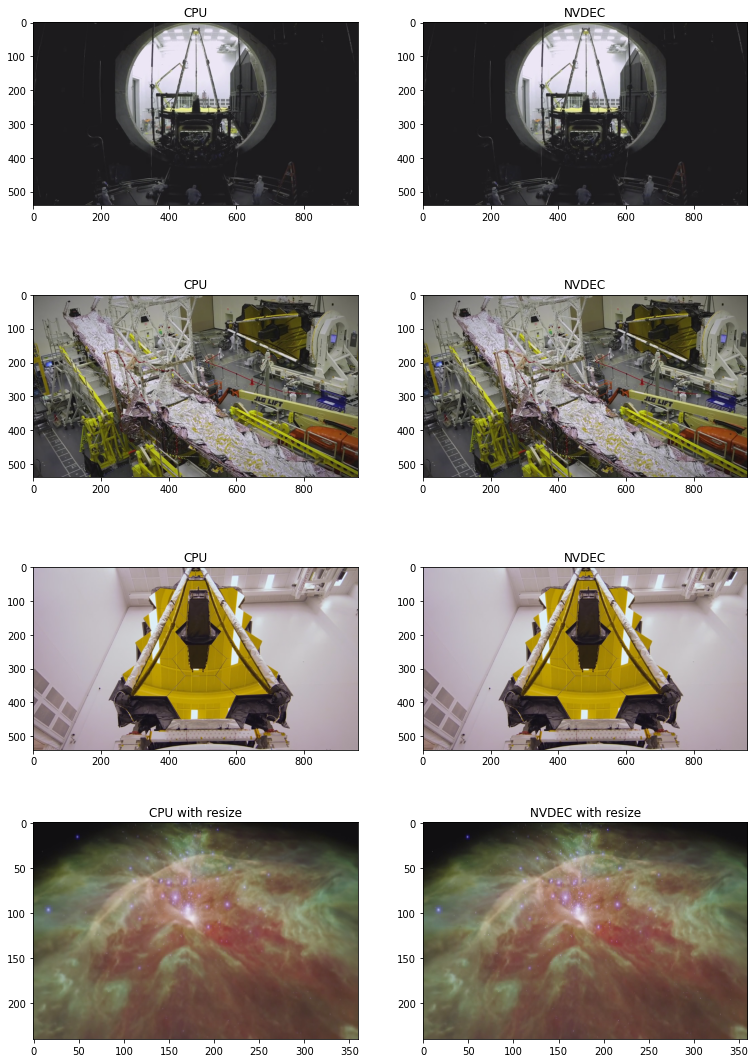
以下代码展示了由 CPU 解码和 NVDEC 生成的一些帧。它们产生的结果看似完全相同。
[39]:
def yuv_to_rgb(img):
  img = img.cpu().to(torch.float)
  y = img[..., 0, :, :]
  u = img[..., 1, :, :]
  v = img[..., 2, :, :]

  y /= 255
  u = u / 255 - 0.5
  v = v / 255 - 0.5

  r = y + 1.14 * v
  g = y + -0.396 * u - 0.581 * v
  b = y + 2.029 * u

  rgb = torch.stack([r, g, b], -1)
  rgb = (rgb * 255).clamp(0, 255).to(torch.uint8)
  return rgb.numpy()
[40]:
f, axs = plt.subplots(4, 2, figsize=[12.8, 19.2])
for i in range(4):
  for j in range(2):
    axs[i][j].imshow(yuv_to_rgb(samples[i][j]))
    axs[i][j].set_title(
        f"{'CPU' if j == 0 else 'NVDEC'}{' with resize' if i == 3 else ''}")
plt.plot(block=False)
[40]:
[]
使用 StreamWriter¶ 对 NVENC 进行基准测试
接下来,我们使用 StreamWriter 和 NVENC 对编码速度进行基准测试。
[41]:
def test_encode(data, dst, **config):
  print("=" * 40)
  print("* Configuration:", config)
  print("* Destination:", dst)
  print("=" * 40)

  s = StreamWriter(dst)
  s.add_video_stream(**config)

  t0 = time.monotonic()
  with s.open():
    s.write_video_chunk(0, data)
  elapsed = time.monotonic() - t0

  print()
  print(f" - Processed {len(data)} frames.")
  print(f" - Elapsed: {elapsed} seconds.")
  print()
  return elapsed

result = torch.zeros((3, 3))
我们使用 StreamReader 来生成测试数据。
[42]:
def get_data(frame_rate, height, width, format, duration=15):
  src = f"testsrc2=rate={frame_rate}:size={width}x{height}:duration={duration}"
  s = StreamReader(src=src, format="lavfi")
  s.add_basic_video_stream(-1, format=format)
  s.process_all_packets()
  video, = s.pop_chunks()
  return video
编码 MP4 - 360P¶
在首次测试中,我们比较了 CPU 和 NVENC 编码低分辨率 15 秒视频所需的时间。
[43]:
pict_config = {
    "height": 360,
    "width": 640,
    "frame_rate": 30000/1001,
    "format": "yuv444p",
}

video = get_data(**pict_config)
CPU¶
[44]:
encode_config = {
    "encoder": "libx264",
    "encoder_format": "yuv444p",
}

result[0, 0] = test_encode(video, "360p_cpu.mp4", **pict_config, **encode_config)
========================================
* Configuration: {'height': 360, 'width': 640, 'frame_rate': 29.97002997002997, 'format': 'yuv444p', 'encoder': 'libx264', 'encoder_format': 'yuv444p'}
* Destination: 360p_cpu.mp4
========================================

 - Processed 450 frames.
 - Elapsed: 3.280829835000077 seconds.
CUDA(来自 CPU 张量)¶
现在我们来测试 NVENC。这一次,数据作为编码过程的一部分,从 CPU 内存发送到 GPU 内存。
[45]:
encode_config = {
    "encoder": "h264_nvenc",  # Use NVENC
    "encoder_format": "yuv444p",
    "encoder_option": {"gpu": "0"},  # Run encoding on the cuda:0 device
}

result[1, 0] = test_encode(video, "360p_cuda.mp4", **pict_config, **encode_config)
========================================
* Configuration: {'height': 360, 'width': 640, 'frame_rate': 29.97002997002997, 'format': 'yuv444p', 'encoder': 'h264_nvenc', 'encoder_format': 'yuv444p', 'encoder_option': {'gpu': '0'}}
* Destination: 360p_cuda.mp4
========================================

 - Processed 450 frames.
 - Elapsed: 0.34294435300000714 seconds.
CUDA(源自 CUDA Tensor)¶
如果数据已存在于 CUDA 上,则可以直接将其传递给 GPU 编码器。
[46]:
device = "cuda:0"

encode_config = {
    "encoder": "h264_nvenc",  # GPU Encoder
    "encoder_format": "yuv444p",
    "encoder_option": {"gpu": "0"},  # Run encoding on the cuda:0 device
    "hw_accel": device,  # Data comes from cuda:0 device
}

result[2, 0] = test_encode(video.to(torch.device(device)), "360p_cuda_hw.mp4", **pict_config, **encode_config)
========================================
* Configuration: {'height': 360, 'width': 640, 'frame_rate': 29.97002997002997, 'format': 'yuv444p', 'encoder': 'h264_nvenc', 'encoder_format': 'yuv444p', 'encoder_option': {'gpu': '0'}, 'hw_accel': 'cuda:0'}
* Destination: 360p_cuda_hw.mp4
========================================

 - Processed 450 frames.
 - Elapsed: 0.2424524550000342 seconds.
编码 MP4 - 720P¶
让我们在分辨率更高的视频上运行相同的测试。
[47]:
pict_config = {
    "height": 720,
    "width": 1280,
    "frame_rate": 30000/1001,
    "format": "yuv444p",
}

video = get_data(**pict_config)
CPU¶
[48]:
encode_config = {
    "encoder": "libx264",
    "encoder_format": "yuv444p",
}

result[0, 1] = test_encode(video, "720p_cpu.mp4", **pict_config, **encode_config)
========================================
* Configuration: {'height': 720, 'width': 1280, 'frame_rate': 29.97002997002997, 'format': 'yuv444p', 'encoder': 'libx264', 'encoder_format': 'yuv444p'}
* Destination: 720p_cpu.mp4
========================================

 - Processed 450 frames.
 - Elapsed: 11.638768525999922 seconds.
CUDA(来自 CPU 张量)¶
[49]:
encode_config = {
    "encoder": "h264_nvenc",
    "encoder_format": "yuv444p",
}

result[1, 1] = test_encode(video, "720p_cuda.mp4", **pict_config, **encode_config)
========================================
* Configuration: {'height': 720, 'width': 1280, 'frame_rate': 29.97002997002997, 'format': 'yuv444p', 'encoder': 'h264_nvenc', 'encoder_format': 'yuv444p'}
* Destination: 720p_cuda.mp4
========================================

 - Processed 450 frames.
 - Elapsed: 0.8508033889999069 seconds.
CUDA(源自 CUDA Tensor)¶
[50]:
device = "cuda:0"

encode_config = {
    "encoder": "h264_nvenc",
    "encoder_format": "yuv444p",
    "encoder_option": {"gpu": "0"},
    "hw_accel": device,
}

result[2, 1] = test_encode(video.to(torch.device(device)), "720p_cuda_hw.mp4", **pict_config, **encode_config)
========================================
* Configuration: {'height': 720, 'width': 1280, 'frame_rate': 29.97002997002997, 'format': 'yuv444p', 'encoder': 'h264_nvenc', 'encoder_format': 'yuv444p', 'encoder_option': {'gpu': '0'}, 'hw_accel': 'cuda:0'}
* Destination: 720p_cuda_hw.mp4
========================================

 - Processed 450 frames.
 - Elapsed: 0.6384492569999338 seconds.
编码 MP4 - 1080P¶
我们制作了尺寸更大的视频。
[51]:
pict_config = {
    "height": 1080,
    "width": 1920,
    "frame_rate": 30000/1001,
    "format": "yuv444p",
}

video = get_data(**pict_config)
CPU¶
[52]:
encode_config = {
    "encoder": "libx264",
    "encoder_format": "yuv444p",
}

result[0, 2] = test_encode(video, "1080p_cpu.mp4", **pict_config, **encode_config)
========================================
* Configuration: {'height': 1080, 'width': 1920, 'frame_rate': 29.97002997002997, 'format': 'yuv444p', 'encoder': 'libx264', 'encoder_format': 'yuv444p'}
* Destination: 1080p_cpu.mp4
========================================

 - Processed 450 frames.
 - Elapsed: 27.020421489 seconds.
CUDA(来自 CPU 张量)¶
[53]:
encode_config = {
    "encoder": "h264_nvenc",
    "encoder_format": "yuv444p",
}

result[1, 2] = test_encode(video, "1080p_cuda.mp4", **pict_config, **encode_config)
========================================
* Configuration: {'height': 1080, 'width': 1920, 'frame_rate': 29.97002997002997, 'format': 'yuv444p', 'encoder': 'h264_nvenc', 'encoder_format': 'yuv444p'}
* Destination: 1080p_cuda.mp4
========================================

 - Processed 450 frames.
 - Elapsed: 1.60377999800005 seconds.
CUDA(源自 CUDA Tensor)¶
[54]:
device = "cuda:0"

encode_config = {
    "encoder": "h264_nvenc",
    "encoder_format": "yuv444p",
    "encoder_option": {"gpu": "0"},
    "hw_accel": device,
}

result[2, 2] = test_encode(video.to(torch.device(device)), "1080p_cuda_hw.mp4", **pict_config, **encode_config)
========================================
* Configuration: {'height': 1080, 'width': 1920, 'frame_rate': 29.97002997002997, 'format': 'yuv444p', 'encoder': 'h264_nvenc', 'encoder_format': 'yuv444p', 'encoder_option': {'gpu': '0'}, 'hw_accel': 'cuda:0'}
* Destination: 1080p_cuda_hw.mp4
========================================

 - Processed 450 frames.
 - Elapsed: 1.4101193979998925 seconds.
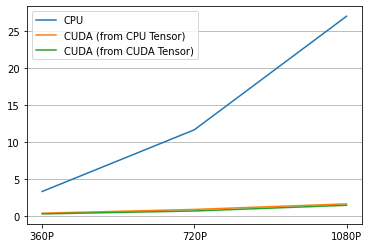
结果¶
这是结果。
[55]:
labels = ["CPU", "CUDA (from CPU Tensor)", "CUDA (from CUDA Tensor)"]
columns = ["360P", "720P", "1080P"]
res = pd.DataFrame(
    result.numpy(),
    index=labels,
    columns=columns,
)
print(res)
                             360P       720P      1080P
CPU                      3.280830  11.638768  27.020422
CUDA (from CPU Tensor)   0.342944   0.850803   1.603780
CUDA (from CUDA Tensor)  0.242452   0.638449   1.410119
[56]:
plt.plot(result.T)
plt.legend(labels)
plt.xticks([i for i in range(3)], columns)
plt.grid(visible=True, axis='y')
生成的视频效果如下所示。
[61]:
from IPython.display import HTML

HTML('''
<div>
  <video width=360 controls autoplay>
    <source src="https://download.pytorch.org/torchaudio/tutorial-assets/streamwriter_360p_cpu.mp4" type="video/mp4">
  </video>
  <video width=360 controls autoplay>
    <source src="https://download.pytorch.org/torchaudio/tutorial-assets/streamwriter_360p_cuda.mp4" type="video/mp4">
  </video>
  <video width=360 controls autoplay>
    <source src="https://download.pytorch.org/torchaudio/tutorial-assets/streamwriter_360p_cuda_hw.mp4" type="video/mp4">
  </video>
</div>
''')
[61]:
结论¶
我们探讨了如何构建支持 NVDEC/NVENC 的 FFmpeg 库,并在 TorchAudio 中使用它们。NVDEC/NVENC 在保存或加载视频时可提供显著的速度提升。